Nearly every online service—from email and banking to social media and cloud storage—relies on passwords to verify your identity and protect personal information. Yet weak, predictable, or reused passwords remain one of the primary ways unauthorized parties gain access to personal and workplace accounts.
When a single website experiences a data breach, leaked email-and-password combinations are frequently tested across hundreds of other platforms through automated attacks. Understanding what makes a password genuinely resilient, how modern authentication tools work, and how to manage dozens of logins without memorizing them all is essential for maintaining everyday digital security. This guide explains practical strategies for creating strong credentials, using password managers, and adding secondary layers of protection.
Why Password Security Matters
Attackers rarely guess passwords manually. Instead, modern cyberattacks rely on automated techniques that test millions of combinations per second:
- Credential Stuffing: Automated tools take usernames and passwords exposed in one data breach and try them on banking, email, and shopping sites—relying on the fact that many people reuse the same password across multiple accounts.
- Brute-Force and Dictionary Attacks: Software systematically tests common words, predictable substitutions (such as replacing a with @ or s with $), birthdates, and leaked password lists until a match is found.
Because a single compromised email account can be used to reset passwords across almost every other service you use, securing your primary logins is one of the highest-impact steps you can take online.
What Makes a Password Strong?
Modern cybersecurity guidance—including recommendations from the National Institute of Standards and Technology (NIST)—prioritizes length and uniqueness over complicated, hard-to-remember symbol patterns.
- Length Over Complexity: Each additional character increases the number of possible combinations exponentially. A 16-character password is vastly harder for automated software to crack than an 8-character password filled with symbols.
- Uniqueness for Every Account: Every online account should have its own distinct password so that a breach on one low-security website cannot compromise your financial, email, or work accounts.
- Unpredictability: Avoid dictionary phrases, song lyrics, pet names, street addresses, keyboard patterns (qwerty or 123456), and personal dates that can be guessed from public profiles.
Passphrases vs. Random Passwords
- Random Character Strings (e.g.,
k9#mP2$vL8@qR5!x): Generated automatically by password managers, offering maximum randomness and resistance to guessing. - Random Passphrases (e.g.,
velvet-compass-orbit-lantern): Combines four or more unrelated words into a single long string. Passphrases are ideal for the few credentials you must type manually—such as your device unlock code or your password manager's master password—because they are easy for humans to remember yet difficult for computers to guess.
Weak vs. Strong Password Practices
| Practice | Weak Approach | Strong Approach |
|---|---|---|
| Length | 8 characters or fewer. | 14 to 16+ characters (or 4+ unrelated words). |
| Account Reuse | Using one password (or slight variations like Pass2025!, Pass2026!) across sites. | 100% unique password for every website and app. |
| Word Choice | Personal names, birth years, favorite teams, or common phrases. | Randomly generated characters or unrelated word combinations. |
| Storage Method | Saving passwords in plain-text notes, spreadsheets, or sticky notes. | Storing credentials in an encrypted password manager. |
How to Manage Dozens of Passwords Safely
Nobody can reliably memorize 50 or 100 unique, complex passwords. Relying on human memory inevitably leads to password reuse or predictable patterns. Dedicated tools solve this problem securely:
1. Use a Reputable Password Manager
A password manager is an encrypted digital vault that generates, stores, and automatically fills unique passwords for every website and app you use.
- How It Works: You only need to remember one strong master password (and pair it with two-factor authentication) to unlock your vault across your phone, laptop, and browser.
- Built-In Security Checks: Most modern password managers alert you if any stored passwords are weak, duplicated across accounts, or found in known data breaches.
- Phishing Protection: Because password managers match credentials to exact website domains, they will not autofill your password on a look-alike phishing site.
2. Add Two-Factor Authentication (2FA)
Even the strongest password can be exposed through phishing or a server breach. Two-factor authentication (2FA) requires a second verification step before granting access to your account:
- Authenticator Apps (Recommended): Applications like Google Authenticator, Microsoft Authenticator, or 2FAS generate time-sensitive six-digit codes directly on your device without relying on cellular networks.
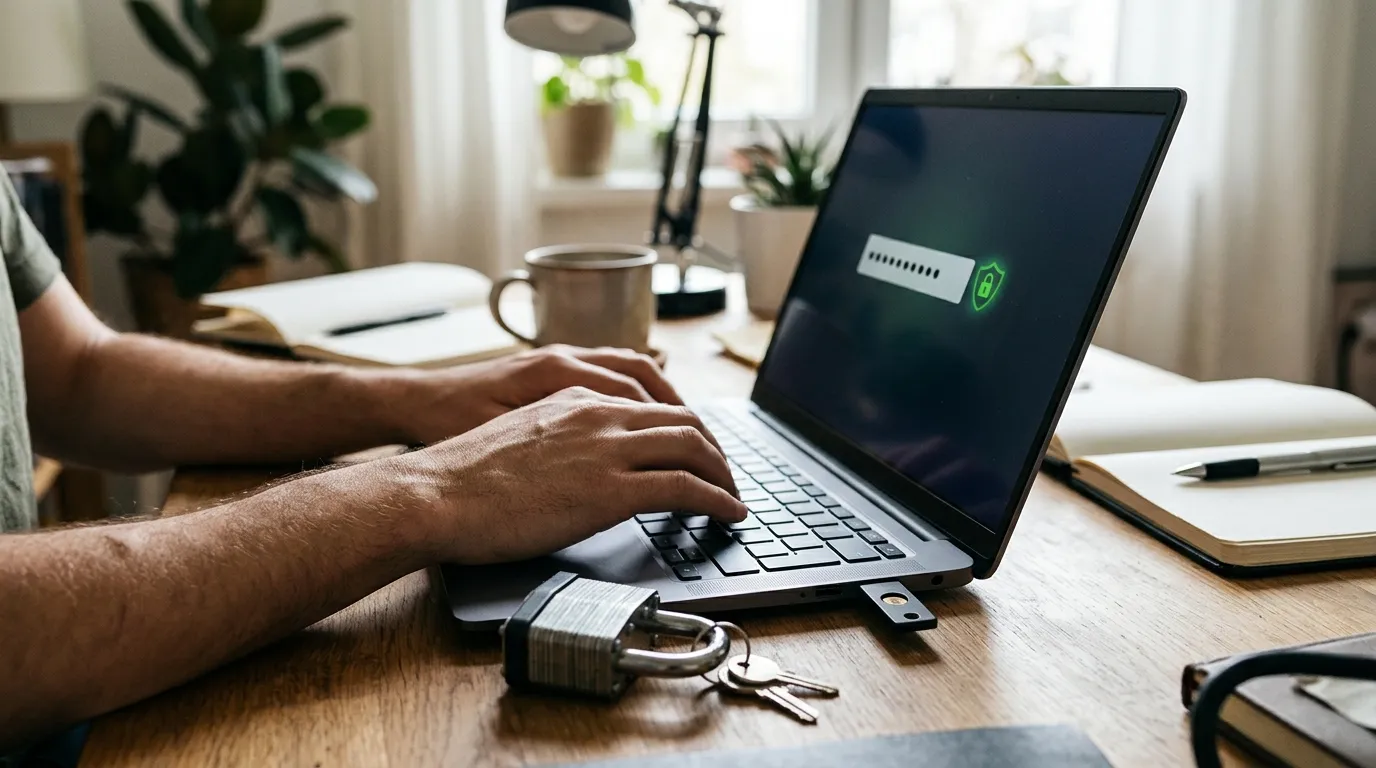
- Hardware Security Keys: Physical USB or NFC keys (such as YubiKey) provide the strongest protection against remote phishing attacks.
- SMS Text Codes: Better than no second factor at all, though less secure than authenticator apps because text messages can occasionally be targeted by SIM-swapping attacks.
3. Adopt Passkeys Where Supported
Many major platforms now support passkeys—a modern replacement for traditional passwords built on public-key cryptography. Instead of typing a password, you sign in using your device's fingerprint sensor, facial recognition, or device PIN. Because passkeys are tied directly to the legitimate website and never leave your device, they cannot be guessed, reused, or stolen in a conventional password database leak.
Practical Steps to Upgrade Your Account Security
- Secure Your Primary Email First: Change your main email password to a unique 16+ character passphrase and enable app-based 2FA immediately, as this account controls password resets for most other services.
- Set Up a Password Manager: Choose a well-established password manager (standalone or built into your operating system ecosystem) and create a memorable master passphrase.
- Update Financial, Work, and Cloud Accounts: Replace reused passwords on banking, payment, healthcare, and cloud storage accounts with randomly generated 16-character passwords.
- Check for Exposed Credentials: Use breach-notification tools (such as Have I Been Pwned or your password manager's security audit) to identify old accounts involved in past breaches and update them.
- Save Backup Recovery Codes: When enabling 2FA on critical accounts, download or print the backup recovery codes and store them in a safe physical location in case you lose your phone.
Frequently Asked Questions (FAQ)
Should I change my passwords every 90 days? Modern cybersecurity standards—including updated NIST guidelines—no longer recommend mandatory periodic password changes unless there is evidence an account or service has been compromised. Frequent forced changes often lead people to pick weaker, predictable variations (such as incrementing a number at the end).
Are browser built-in password managers safe to use? Built-in password managers in browsers like Chrome, Safari, Edge, and Firefox use encryption and are far safer than reusing passwords or writing them down. However, standalone password managers often offer stronger cross-platform syncing, secure note sharing, and additional master-password protection if someone gains access to an unlocked computer.
What should I do if a website I use suffers a data breach? Immediately change your password on that specific website to a newly generated unique password. If you ever reused that old password on any other account, change it on those accounts right away as well, and ensure two-factor authentication is active.
Is writing passwords down in a notebook safe? For individuals who struggle with digital tools, keeping a paper notebook stored securely inside a locked drawer at home is safer than reusing weak passwords or saving them in an unencrypted file on a computer—provided the notebook never leaves the house.
Conclusion
Strong password security relies on simple, consistent habits rather than memorization gymnastics. Using long, unique passwords for every account, letting an encrypted password manager handle the complexity, and enabling two-factor authentication or passkeys dramatically reduces the risk of unauthorized access. Starting with your primary email and financial accounts builds a resilient foundation for protecting your entire digital presence.
Sources & Further Reference
- National Institute of Standards and Technology (NIST) – Digital Identity Guidelines (SP 800-63B)
- Cybersecurity and Infrastructure Security Agency (CISA) – Use Strong Passwords and Password Managers
- Federal Trade Commission (FTC) – Create Strong Passwords and Protect Your Accounts
- UK National Cyber Security Centre (NCSC) – Using Passwords and Three Random Words
- FIDO Alliance – Passkeys: Passwordless Authentication Standards
Disclaimer: This article is intended for general educational and informational purposes only and does not constitute professional cybersecurity advice. Account security features, authentication methods, and platform policies vary by service provider and may evolve over time.